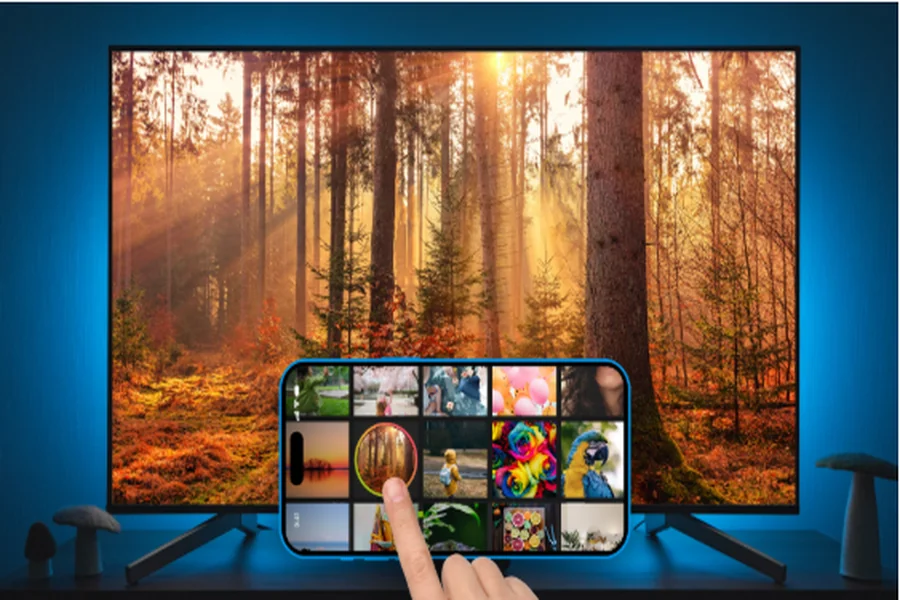
Watching videos, sharing photos, or showing something from your phone is often more convenient on a large screen. While iPhones are great for everyday entertainment, their displays can feel a little small when you want to enjoy content with family or friends. That’s where screen mirroring comes in.
Screen mirroring iPhone to Smart TV allows you to display your phone’s screen on your television without connecting cables. You can share presentations, browse photos, demonstrate an app, or enjoy other content on a bigger display.
However, connecting an iPhone to a Smart TV isn’t always as straightforward as it seems. Not every television supports Apple’s AirPlay technology, and some models require additional steps to establish a connection.
Fortunately, there are alternative solutions. One of them is DoCast, an iPhone and iPad app designed to make wireless screen mirroring and media streaming easier across different TV brands and streaming devices.
What Is Screen Mirroring and How Does It Work?
Screen mirroring duplicates the display of your iPhone on another screen, such as a Smart TV. Instead of looking at content on your phone, you can see it on your television in real time.
For example, if you open a photo gallery, navigate through a website, or launch an app, the same activity appears on your TV. This makes screen mirroring useful in several everyday situations:
- Sharing photos and videos: Show vacation pictures, family videos, or memorable moments on a larger display.
- Watching content together: Enjoy compatible videos with friends and family without passing your phone around.
- Presentations: Display documents, slides, or other materials during meetings.
- Gaming: Play compatible mobile games on a larger screen.
- Demonstrations: Show how an app works or explain something directly from your iPhone.
Unlike traditional casting, which sends selected media to a TV, screen mirroring displays the entire phone interface. Both options can be useful depending on what you want to do.
How to Mirror iPhone to Smart TV
There are several ways to connect an iPhone to a Smart TV. The best method depends on your television’s operating system and available connectivity features.
1. Use Apple AirPlay
AirPlay is Apple’s built-in wireless streaming technology. If your Smart TV supports AirPlay, you can mirror your iPhone without installing an additional application.
Here’s how to use it:
- Connect your iPhone and Smart TV to the same Wi-Fi network.
- Open Control Center on your iPhone by swiping down from the upper-right corner.
- Tap Screen Mirroring.
- Select your television from the list of available devices.
- Enter the AirPlay passcode if your TV displays one.
Your iPhone screen should now appear on your television.
AirPlay is convenient, but there is one important limitation: not every Smart TV supports it. Some older televisions and models running different operating systems may not offer native AirPlay functionality.
2. Use a Third-Party Screen Mirroring App
If your TV doesn’t support AirPlay, a third-party application can provide another way to establish a wireless connection.
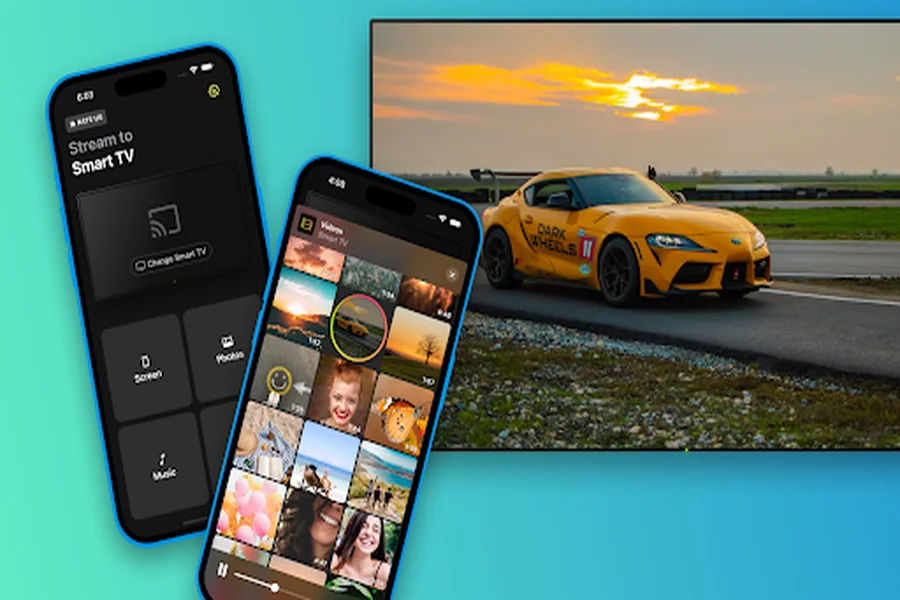
One option worth considering is DoCast. It is designed for iPhone and iPad users who want to mirror their screens or stream personal media to compatible Smart TVs and streaming devices.
The app supports a range of technologies and devices, including DLNA-enabled televisions, Chromecast, Roku, and Fire TV. This makes it useful for households with different television brands and streaming platforms.
You can learn more about its features on the official DoCast website.
3. Use an HDMI Adapter
A wired connection is another option if wireless mirroring isn’t available or convenient.
Depending on your iPhone model, you can use a compatible USB-C or Lightning digital AV adapter together with an HDMI cable.
The process is simple:
- Connect the adapter to your iPhone.
- Plug one end of the HDMI cable into the adapter.
- Connect the other end to an available HDMI port on your TV.
- Select the corresponding HDMI input on your television.
This method doesn’t depend on Wi-Fi, but it does require additional equipment. It also means keeping your iPhone physically connected to the TV.
DoCast: An Easy Way to Mirror iPhone to Smart TV
If you prefer a wireless connection without relying on AirPlay, DoCast offers a practical alternative.
Developed for iOS, DoCast combines screen mirroring with media streaming features in one application. Instead of switching between different tools, you can use the app to display your iPhone screen or send selected photos, videos, and music to a compatible television.
One of its main advantages is device compatibility. DoCast works with various Smart TVs and streaming devices, including:
- Samsung and LG Smart TVs with DLNA support.
- Sony, Panasonic, and other DLNA-compatible televisions.
- Chromecast and TVs with Chromecast built-in.
- Roku streaming players and Roku TVs.
- Amazon Fire TV and compatible Fire TV Stick devices.
Actual compatibility depends on the TV model and its supported technology.
How to Use DoCast for Screen Mirroring
Getting started doesn’t require complicated configuration. Once you’ve installed the application, follow these steps:
- Connect to Wi-Fi. Make sure your iPhone and Smart TV or streaming device are connected to the same Wi-Fi network.
- Install DoCast. Download the application from the App Store and open it on your iPhone.
- Select your TV. DoCast will search for compatible devices on your network. Choose your television or streaming device from the available list.
- Open the Screen section. Tap the Screen button on the app’s main screen.
- Adjust the settings. Choose your preferred mirroring quality and configure options such as auto-rotation and sound where supported.
- Start mirroring. Tap Start Mirroring to display your iPhone screen on the TV.
When you’re finished, simply return to DoCast and tap Stop Mirroring.
For some devices, additional steps may be necessary. For example, mirroring to Roku requires installing the DoCast channel from the Roku Channel Store. Fire TV screen mirroring requires the DoCast app to be installed on the Fire TV device.
More Than Just Screen Mirroring
Another useful aspect of DoCast is that it doesn’t focus exclusively on duplicating your phone’s display.
The app also lets you stream selected media directly to compatible devices. This can be more convenient when you only want to share specific content rather than show everything happening on your iPhone.
Here are some of its main features:
- Photo casting: Display photos from your iPhone library on a larger screen. Photo casting is available without session limits in the free version.
- Video streaming: Send compatible personal video files from your phone to your TV.
- Music streaming: Play music through compatible televisions and speakers.
- Adjustable mirroring settings: Configure screen quality and auto-rotation to suit your viewing preferences.
DoCast is available as a free download with optional premium upgrades. Some features have usage limits in the free version, while unlimited screen mirroring and streaming require a premium upgrade.
You can find the app here: DoCast – Screen Mirroring to TV on the App Store.
Common Screen Mirroring Problems and How to Fix Them
Even when you use a compatible Smart TV, wireless screen mirroring doesn’t always work perfectly on the first attempt. Fortunately, most connection problems are relatively easy to troubleshoot.
Your TV Doesn’t Appear in the Device List
If your television isn’t showing up in DoCast or another mirroring application, start by checking your network connection.
Both devices should be connected to the same Wi-Fi network. Also, make sure your TV is switched on and that its wireless connection is active.
If the problem persists, restart the app and your television. You can also try restarting your Wi-Fi router.
Screen Mirroring Keeps Disconnecting
Unstable Wi-Fi can interrupt a mirroring session. A weak signal, network congestion, or a large distance between your devices and router may affect performance.
Try moving closer to your router or reducing the number of devices using the network. If possible, connect your TV to a stronger Wi-Fi signal.
The TV Connects but Shows a Black Screen
Some streaming services restrict screen recording and mirroring because of copyright protection. As a result, certain protected videos may display a black screen even when the connection itself is working correctly.
This limitation can affect third-party mirroring apps, including DoCast. For protected streaming content, it’s generally better to use the streaming service’s official TV app.
Your TV Doesn’t Support AirPlay
If your television doesn’t have built-in AirPlay, you don’t necessarily need to replace it or purchase a new device.
Check whether it supports DLNA, Chromecast, or another compatible streaming technology. Depending on the model, you may be able to use DoCast or a compatible external streaming device to establish a wireless connection.
Final Thoughts
Screen mirroring iPhone to Smart TV is a convenient way to enjoy mobile content on a larger display. Whether you want to share family photos, show a presentation, or browse something together, there are several ways to connect your devices.
AirPlay is a good starting point for compatible televisions, while HDMI adapters provide a reliable wired alternative. If your TV doesn’t support AirPlay or you want more flexibility, a third-party application can make the process easier.
DoCast is one such option for iPhone users. With support for DLNA-enabled Smart TVs, Chromecast, Roku, and Fire TV devices, it provides screen mirroring and media streaming features in one place.
If you’re looking for a convenient way to connect your iPhone to a compatible Smart TV wirelessly, DoCast is worth exploring.